
Applicable Packages
All Kumo™ packages
Purpose / Overview
This article explains why your MFA QR code may no longer appear and provides steps to reset it so you can rescan and reconnect your Authenticator app successfully
Prerequisites
✅You have access to someone with Employee page > Employees Listing access
Step-by-Step Instructions
Step 1: Understand why the QR code is not showing
The QR code is not displayed because it has already been scanned and linked to a device. To scan it again, MFA (Multi-Factor Authentication) must be reset.
Step 2: Option 1 – Reset via Employee Page
- Get in touch with a user who has already logged in and has access to the system
- Navigate to Employee Page > Employee Listing tab
- Locate your username row
- Click the Reset button under the MFA column
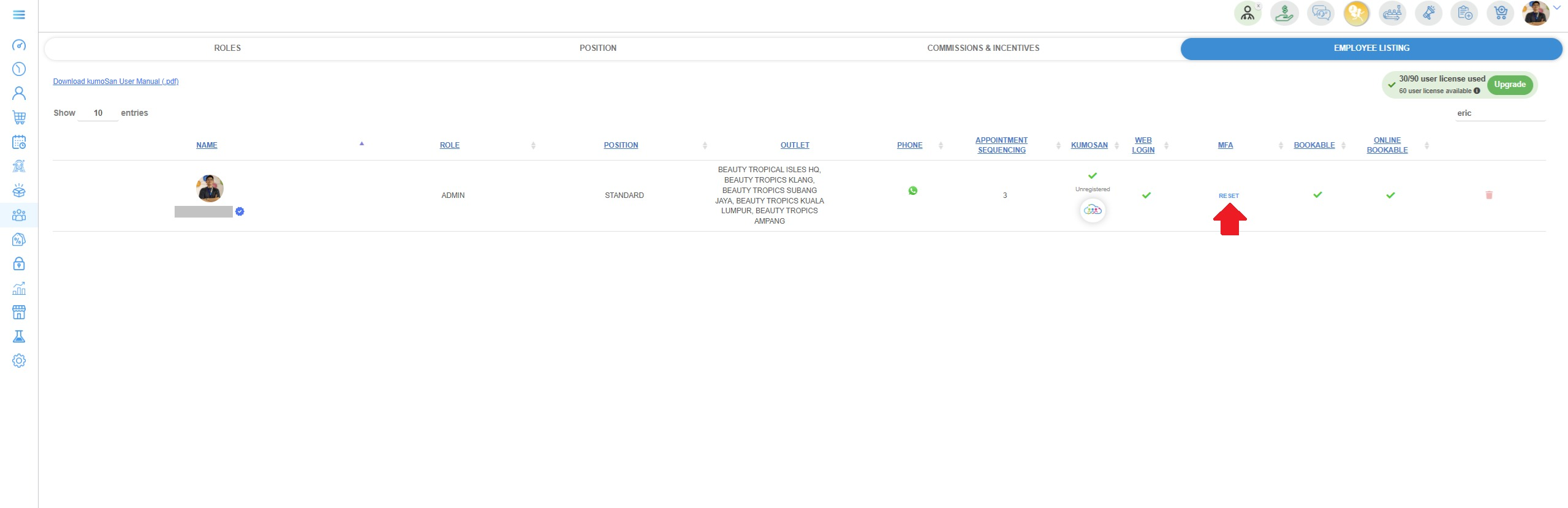
- Once reset, return to the login page
- The QR code will now reappear for you to scan again using your Authenticator app
Step 3: Option 2 – Reset via Forgot Password
- Go to the login page
- Click Forgot Password > input your username and you will receive the email for the temporary password
- After login with the temporary password, the MFA QR code will be shown again during login
- Scan the QR code using your Authenticator app
✅ Expected Outcome
After completing either option, the MFA QR code will be regenerated, allowing you to successfully rescan and link your device again.
❓Troubleshooting / FAQs
Q: Why is my QR code not appearing?
A: It has already been scanned and linked to a previous device.
Q: Can I use both options?
A: Yes, either option will reset your MFA and regenerate the QR code.